Client Complaints: Where Do I Look?
Do not start every complaint from the same page. Identify the client's question, then open the view that directly answers it.
Choose the Entry Point
Unexpected fill price
“Why did I fill at this price?”
Orders → Decision → Ticks only when neededRejected order
“Why was the order not filled?”
Orders → Decision → Alarm when relevantMissing order
“I submitted it, but it is not shown.”
Orders → Order → verify time/account → Decision StreamQuote complaint
“The price stopped, jumped or widened.”
Ticks → Dashboard → AlarmUse the Ticket when available. Without it, collect Account, Symbol, Side, Order Type, the client's reported time and timezone, then use the narrowest useful search window.
Example: Unexpected Fill Price
The client asks: “Why did my XAUUSD order fill at 2341.80?” Start in Orders → Decision, not the ordinary Order tab or Clients.
Step 1: Open Decision Under Orders
Select the Decision tab. Search by Ticket or Dec ID. If unavailable, combine Account, Symbol and a narrow date range.
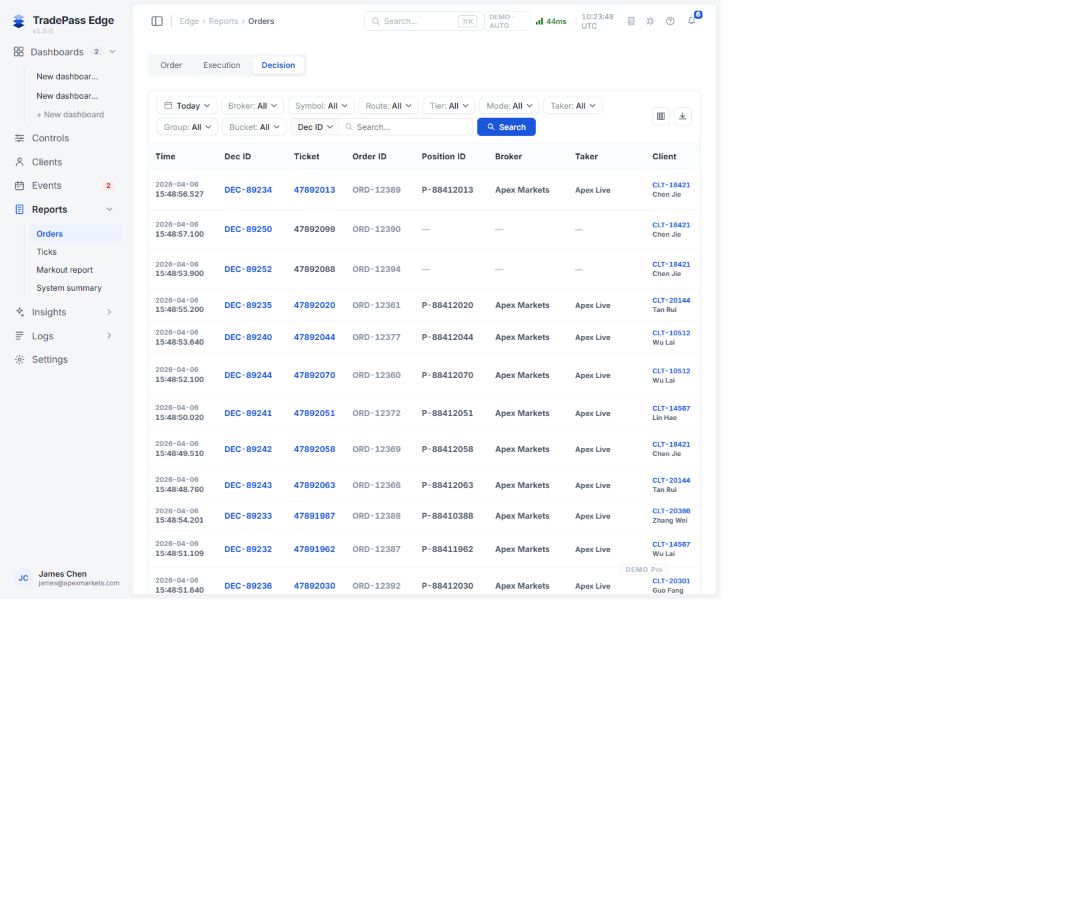
Confirm Time, Dec ID, Ticket, Order ID, Position ID, Account / Client, Symbol, Side, Action, Type, Requested / Filled Vol, Request price, Filled price, Client fill price, Rule, Route, Mode, Spread, Slippage, Delay, Final, Cost and Status.
Example: DEC-89234, Ticket 47892013, records XAUUSD BUY 1.00 at 15:48:56.527, Request price 2341.50, Filled price 2341.55, Client fill price 2341.80 (+25), Rule Force STP — T5, Route STP, Final +5 pts, Cost 3ms, Status FILLED.
Step 2: Check Ticks Only When Quote Context Is Needed
Select the order's Taker and exact Taker symbol, use a narrow window around the order time, then search.
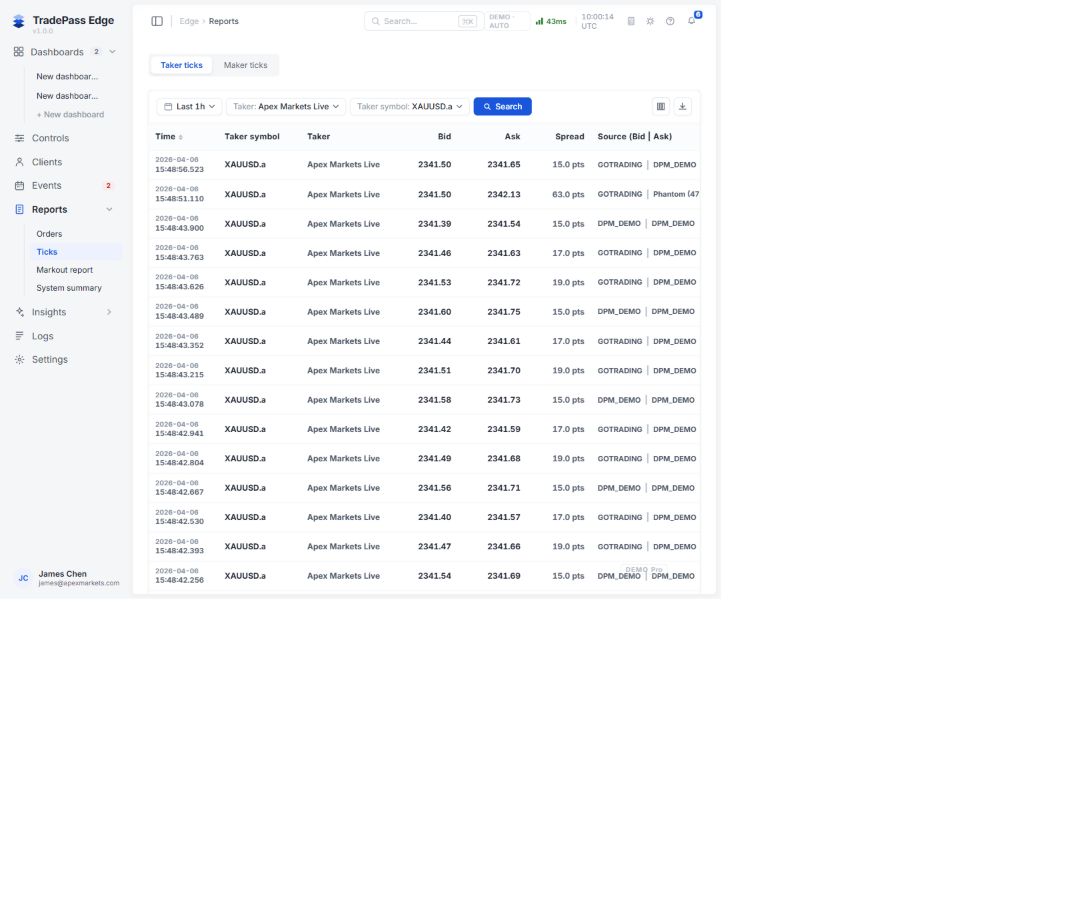
Decision contains the core price evidence. Use Ticks when the investigation also requires the market quote context, Source or quote continuity. Confirm Taker and symbol suffix; compare the nearest ticks before and after the Decision time; record Bid, Ask, Spread and Source.
Step 3: Expand Only When the Evidence Requires It
| Signal found | Next view | Purpose |
|---|---|---|
| Possible quote, Taker, LP or pool incident | Alarm | Check relevant alarms in the same window |
| Stale quote, stream difference or suspicious source state | Dashboard | Check current stream and symbol state |
| Client/account relationship is unclear | Clients | Confirm UID, account, platform and group |
| Other orders may be affected | Orders | Test the wider symbol/time scope |
Matching timestamps do not prove an alarm caused the execution. Dashboard is a current snapshot and cannot replace historical Orders and Ticks evidence.
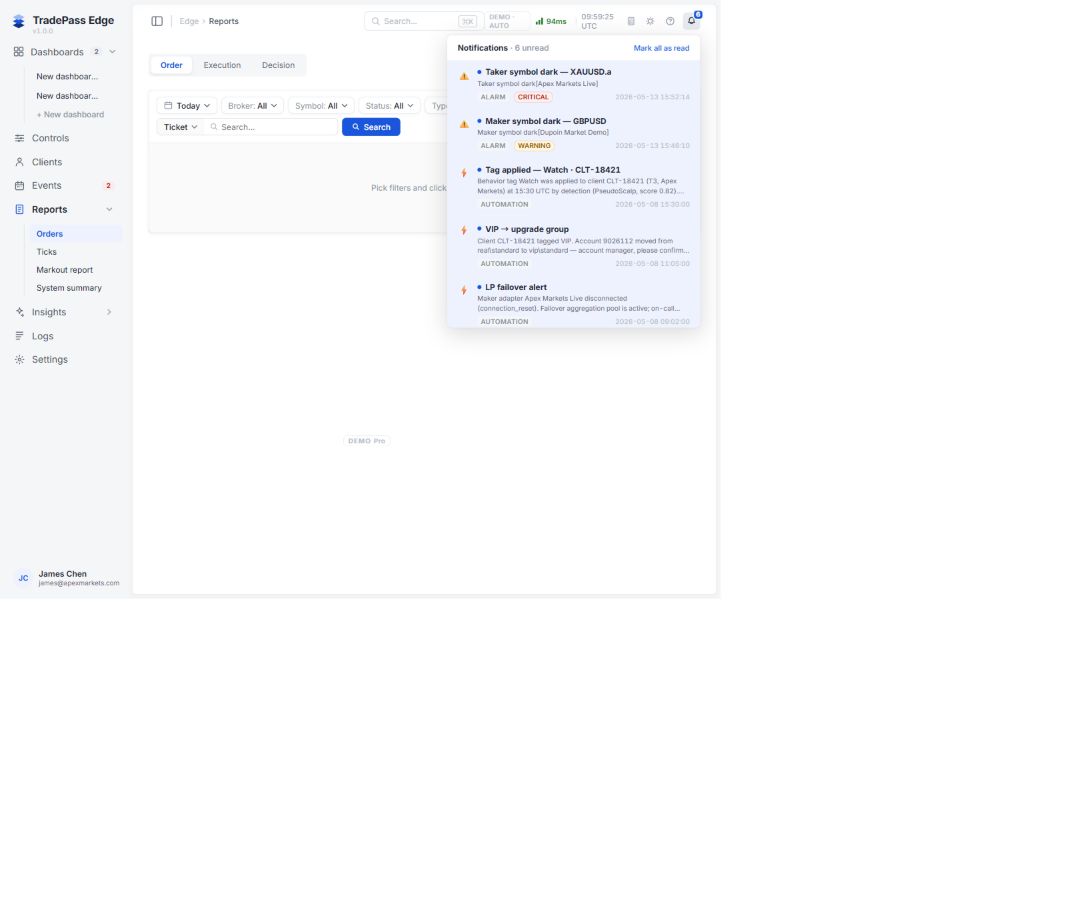
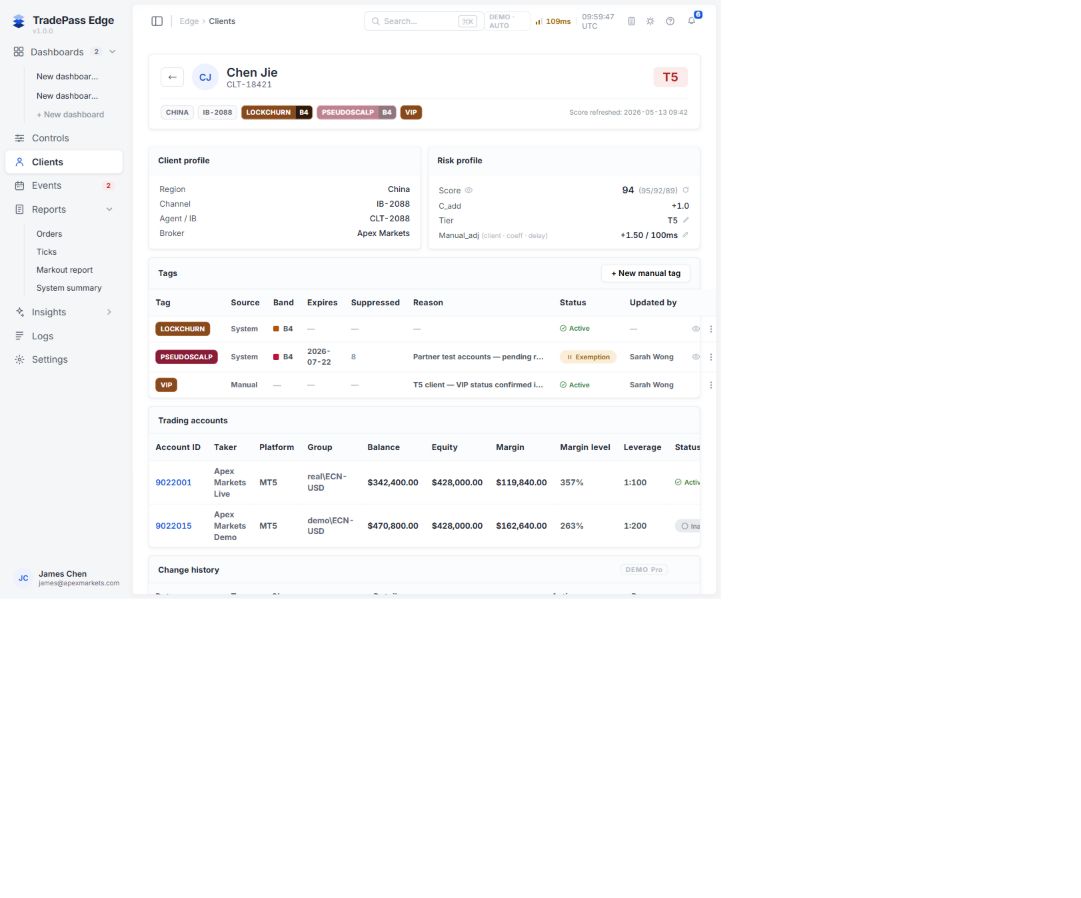
Use Clients only when identity or account scope must be confirmed. Tags, score and P&L do not prove whether an execution price was correct.
Evidence to Escalate
Preserve client and account IDs, Ticket / Position ID, Server Time and timezone conversion, order fields and prices, matching Taker / symbol tick window, Bid / Ask / Spread / Source, relevant alarms, confirmed scope, unknowns and next check.
Escalation Example
At 15:48:56.527 Server Time, client CLT-18421, account 9022001, reported an unexpected fill price for XAUUSD ticket 47892013. Orders → Decision record DEC-89234 shows Request price 2341.50, Filled price 2341.55, Client fill price 2341.80 (+25), Rule Force STP — T5, Route STP, Final +5 pts, Cost 3ms and FILLED status. [If quote context is required: matching Taker / symbol Ticks show …]. Current confirmed scope is [scope]. [Unknowns] remain under review.